After Effects Part 1
The goal of this lesson is that you will create a video similar to this one.
WHAT IS AFTER EFFECT?
More information about After Effects: go to Adobe Creative Cloud.
Download After Effects
Before we start, please download AE Practice Files.
LET'S START!
Let’s launch AE. If it’s the first time, you’ll notice the Start Screen. It gives me a list of the recent projects that I’ve opened. (If you never opened an AE project before, then obviously the list will be empty).
Press the New Project button to create a new project.

THE INTERFACE
Let’s tour the interface. Here are different panels. When you click any panel you make it active, highlighted in blue and you are able to access its options.
The most important panels are:
- Menu bar (at the top)
- Tools panel (under the menu bar, upper left)
- Project panel (upper left)
- Composition panel (centre)
- Timeline (bottom)
P.S. Make sure you have the right Workspace: Windows > Workspace > Standard.

If you are already familiar with Adobe Photoshop, you will probably recognize some similar tools and know that one final image is usually created by multiple layers compositing. We will animate several elements to create a whole new scene, so we can see AE as Photoshop for videos.

WHAT IS A PROJECT PANEL?
This one on top left is the Project Panel, that is going to collect all of the elements that you are going to work with: video, images, audio files.. Anything is here and we can start editing them.
BUILDING A COMPOSITION: DRAG THE FILES INTO PROJECT PANEL
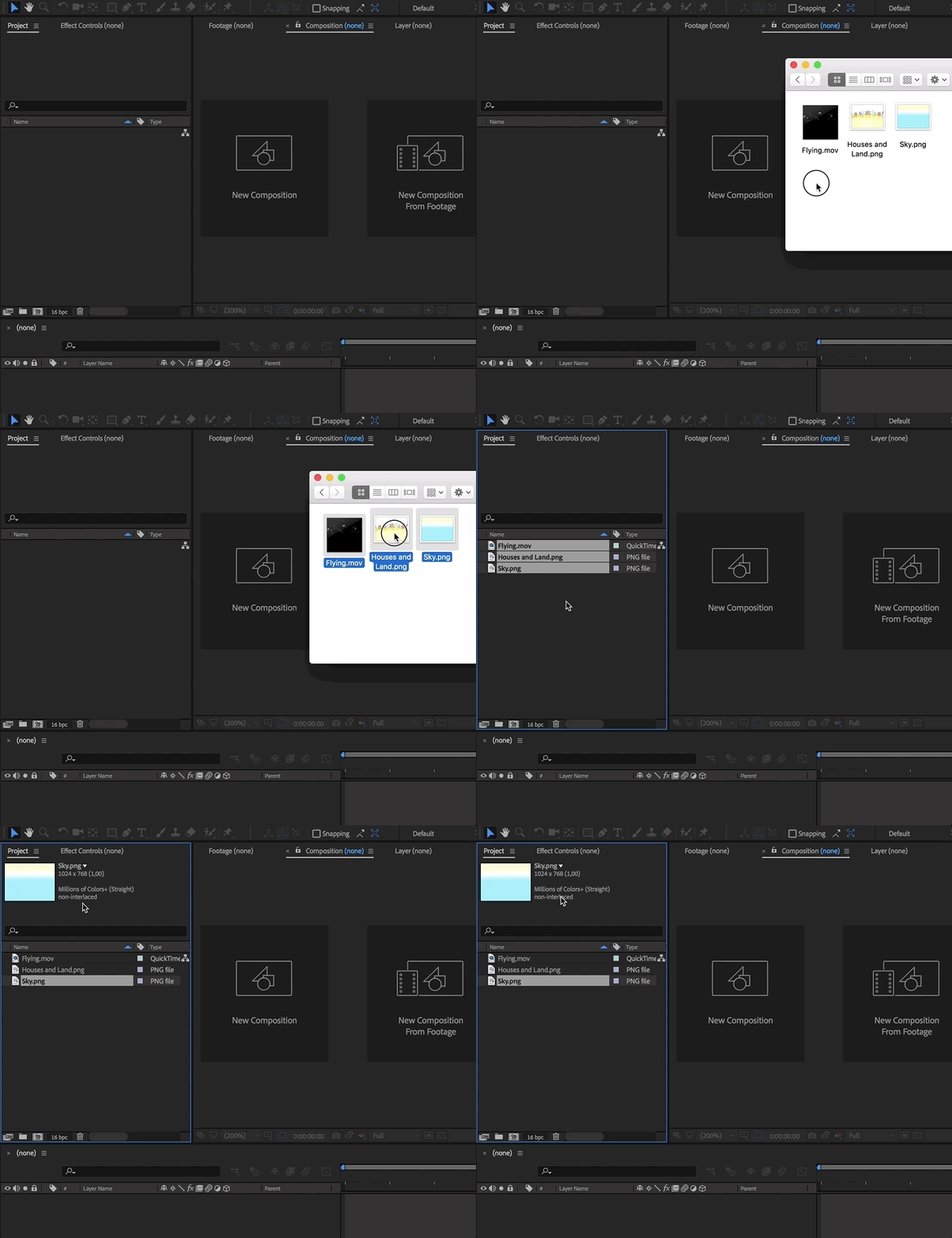
Open the folder you downloaded here: with only two .png file and a clip .mov we'll create a beautiful loading video for your storybook app!
Drag the files into the Project Panel, to import it into After Effects. It also shows info about assets, when selected.
P.S. I still find drag and dropping the easiest way, but can also go from the manual, File > Import.
WHAT IS A COMPOSITION?
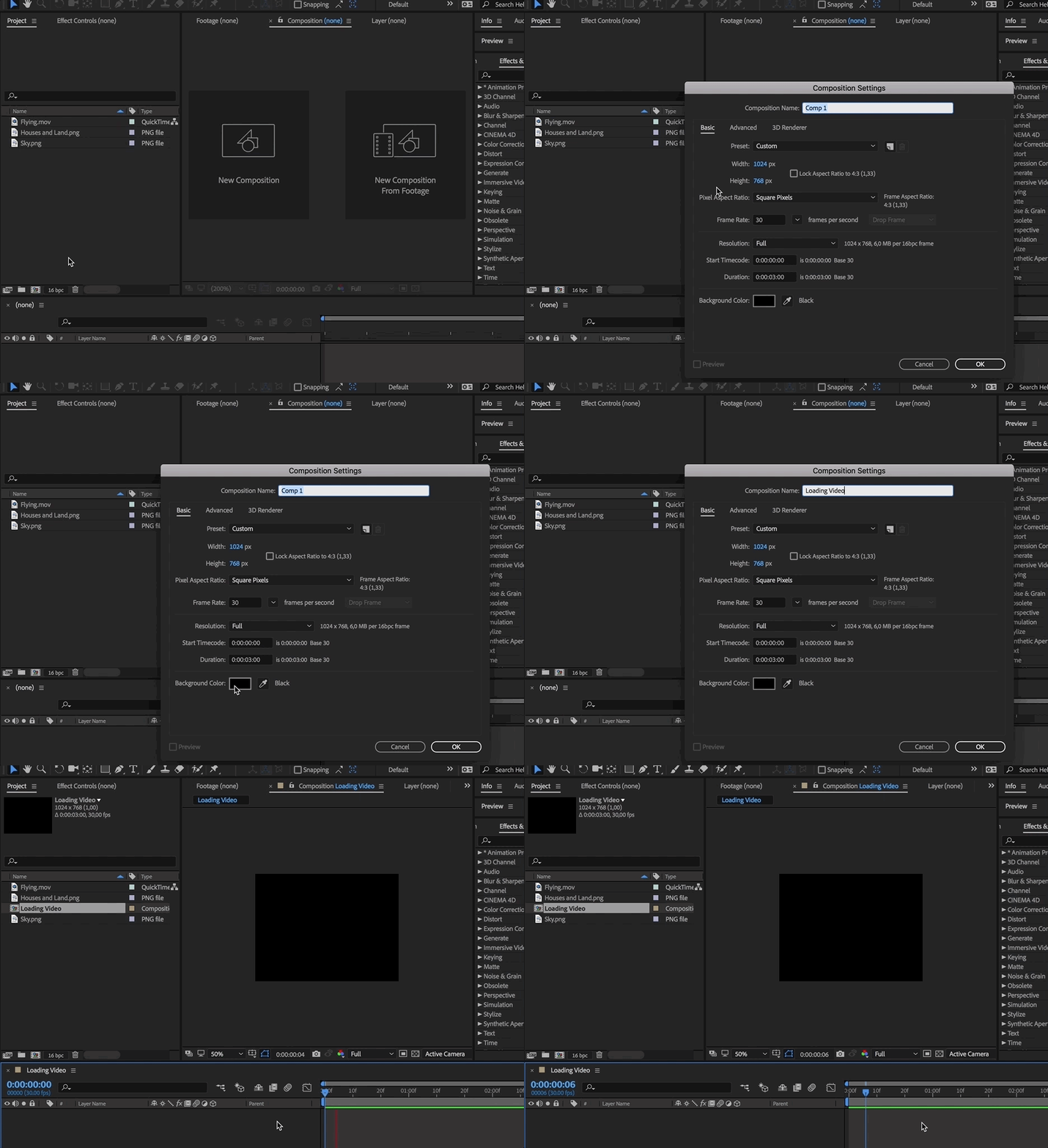
Now all is ready and what we need is a Composition. Let’s press in that little icon here, in the bottom of the Project Panel, to create a New Composition.
It gives you different options, let’s set the resolution for a VL2 storybook Loading video: 1024x768 px, the frame rate of 30, the duration of 30 seconds and the background black. You can give a name, “Loading Video” for now, and press ok.
Now we can see something in the Composition and that the timeline is now active, but moving the time cursor (press Spacebar to preview, and just press the Spacebar again to stop playback), there is nothing yet.
BUILDING A SCENE: DRAG THE ASSETS INTO TIMELINE
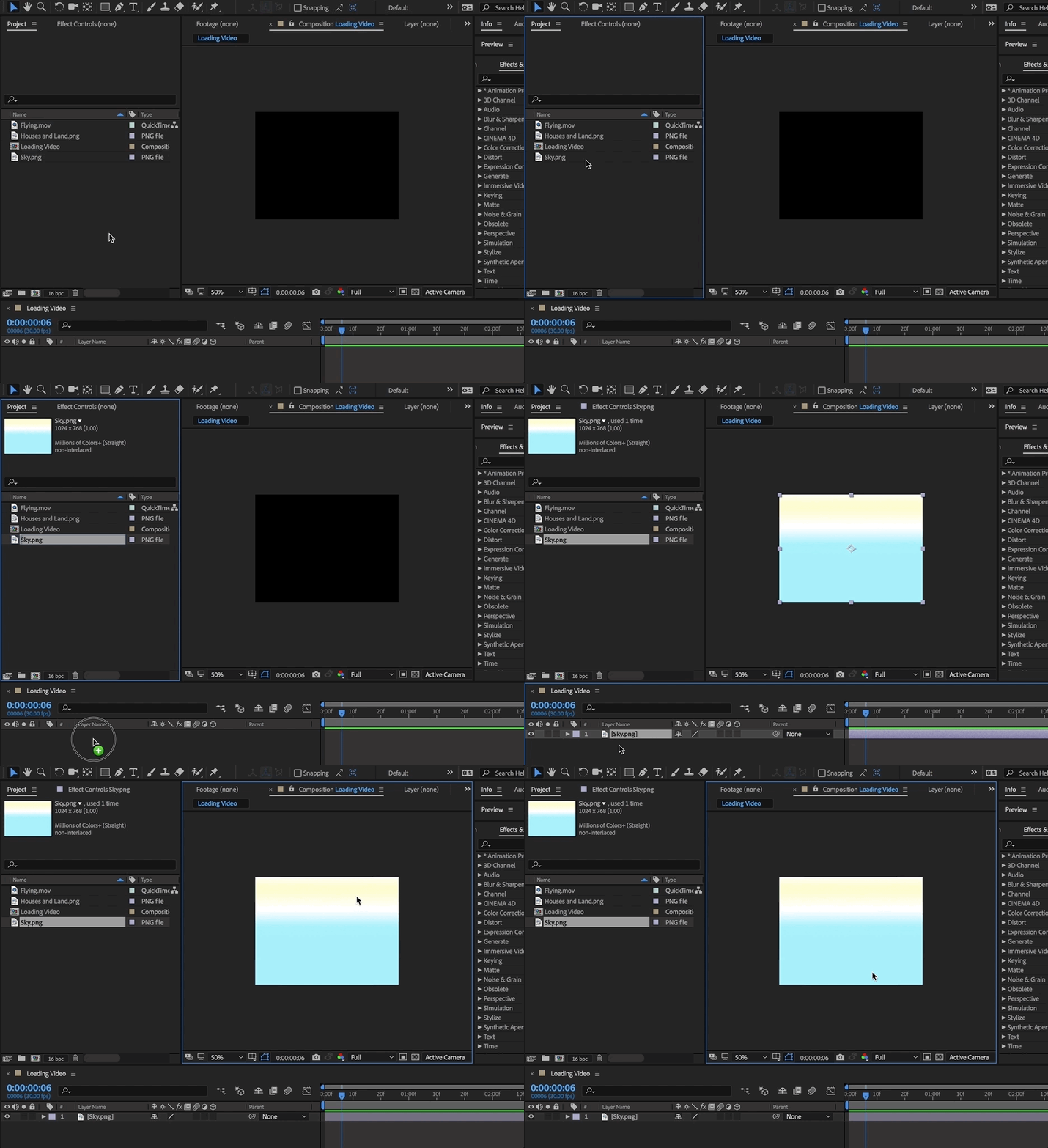
Now it's time to start building the scene. Let's grab the asset “Sky.png” from the Project panel into the Timeline (stack of layer that create the composition) down, and finally we can see something also in the Composition Panel.
Let's grab the asset “Houses & Land.png” into the Timeline down, making sure it is upper the Sky.png layer. You'll see it's big. Press S and you'll get the Scale property. Click on the values and digit 50. It will fit the Composition now.
Now we need the layer a little bit down to place the museum in the centre of the composition: press P and here you see the values of Position property. The left value is vertical while that right is horizontal. On the left value click and digit (or drag to right till) 517, in the way you see here. It will put the layer little down. Perfect.

By adding the clip “Flying.mov”, upper all the previous layers, we’ve built a scene, we can see on timeline that there is animation: Put the timeline cursor at the beginner, set the Composition view at 100%. Press Spacebar to preview the animation. Just pressing the Spacebar again we'll stop playback.

It’s pretty boring, so let’s animate layers and make a new scene.
Continue on the next page!